Replacing audio in a video is a quick way to dramatically improve your content—whether you're fixing unclear sound, removing background noise, changing background music, or swapping in a professional voiceover. With the right tool, the process is simple and doesn't require advanced editing skills.
In this guide, we'll walk you through how to use FlexClip to replace audio in a video in 2 easy methods, depending on your specific use case. Let's get started.
Free Templates for Your Video Inspirations



Can't Miss: 5 Best Male to Female Voice Changers>
How to Replace Audio in a Video Online in 2 Ways for Different Cases
We have just a great online tool to help you remove and replace the audio track in a video. It works completely online, so you don't have to download and install any software on your device.
As a powerful online video editor, available both on Mac and Windows, FlexClip can work as a video audio replacer helping you replace audio in a video for free. Here are different options for you to replace the audio in a video: add a new music track from FlexClip's music library or upload your own one, record your own voice-over with its easy voice recorder, and even generate a cool ai voice using its advanced ai text to speech tool.
Here, we'll introduce the 2 audio-replace options separately below, you can choose any method your need or try all of them to find your desired one:


Method 1 Replace the Audio in a Video with a New Music Track
Not satisfied with the bgm of your video? You can easily change the music to a new one at FlexClip in clicks. You can upload your desired song to replace the music or simply search one from FlexClip's music library.
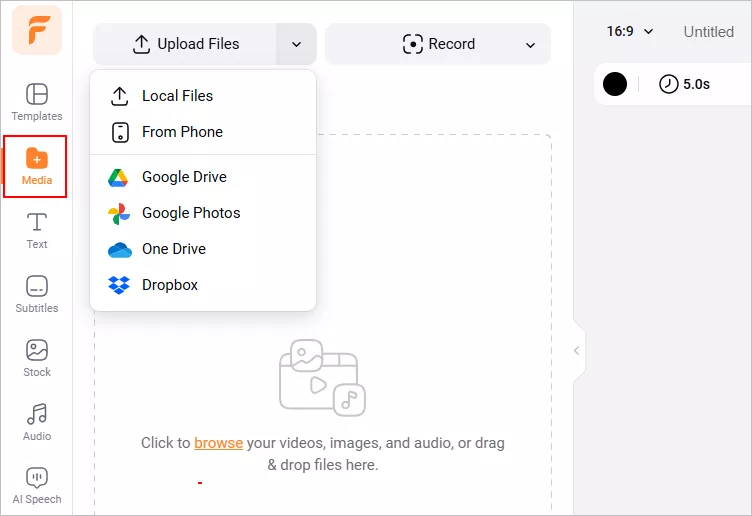
Replace the Audio in a Video with a New Music Track - Upload
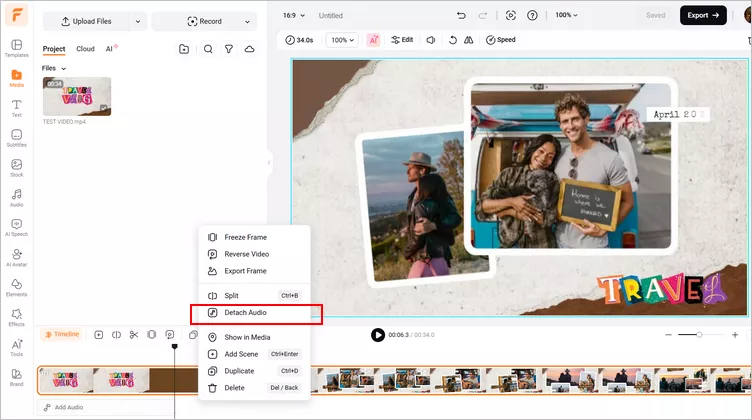
Replace the Audio in a Video with a New Music Track - Detach Audio
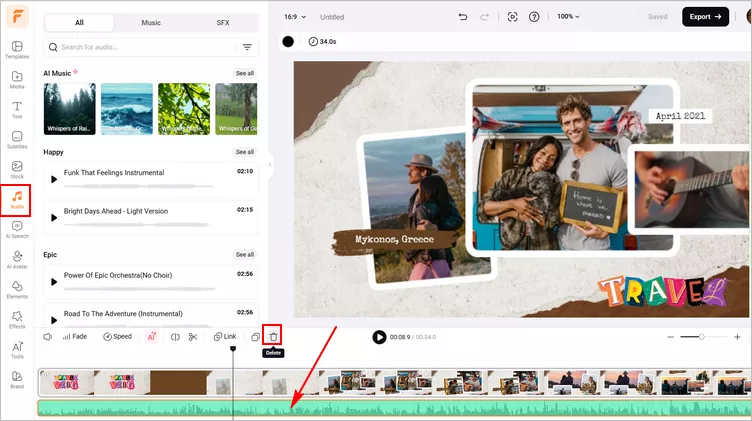
Replace the Audio in a Video with a New Music Track - Change Music to a New One
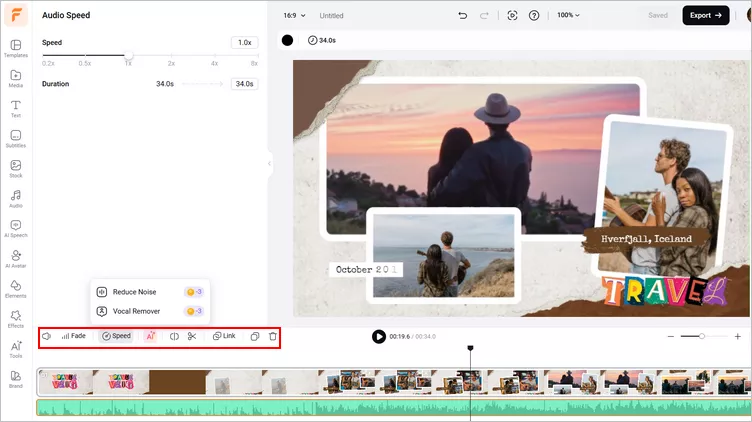
Replace the Audio in a Video with a New Music Track - Edit Music
Method 2 Replace the Audio in a Video with New Voice-over
Besides change the background music of your video to a new one, you can also record your own voice-over use FlexClip's easy voice recorder for your video narration and replace the original sound.
Shy to use your own voice to replace the audio in the video? Then, you can turn to FlexClip's smart AI text to speech tool to generate an AI voiceover for your video. Voice cloning feature is also available for you to narrate your video with any desired voice. Check the steps below to learn how to use an AI voice to replace the audio track in a video.
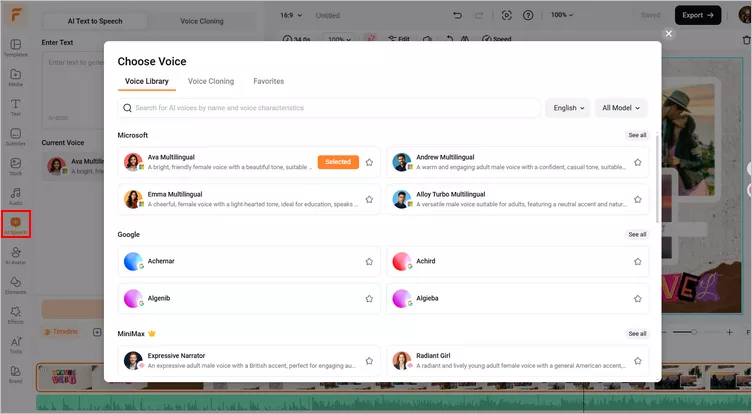
Replace the Audio in a Video with AI Voice - AI Speech
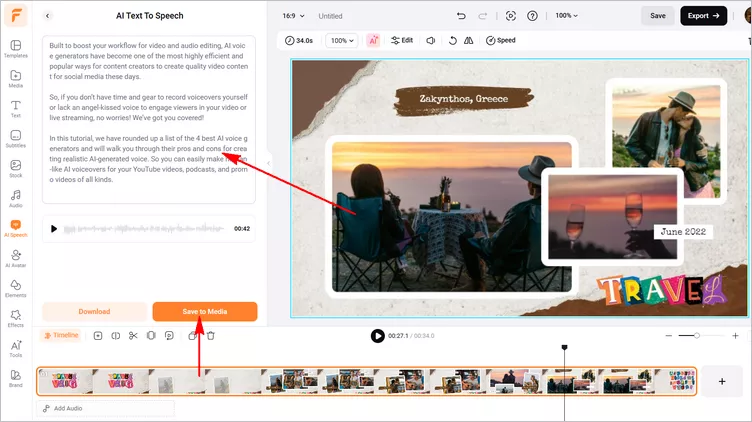
Replace the Audio in a Video with AI Voice - Generate Voiceover
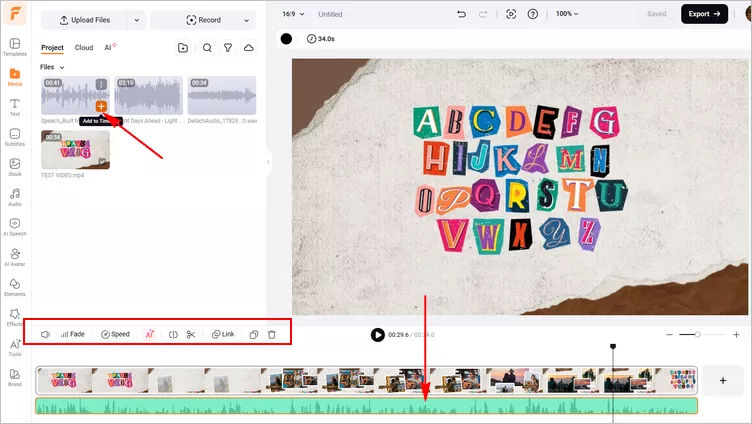
Replace the Audio in a Video with AI Voice - Edit AI Voice
Final Words
That's all for the best online free video audio replacers to help you replace the audio in a video. Hopefully, with the method we introduced above, everyone can change the audio in a video and take the video next level with great ease.




FlexClip AI Video Maker
Reach professional-quality videos faster with easy editing tools, templates, and smart AI.
Start Now for Free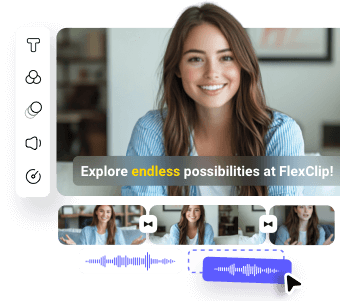
Hot & Trending
-

Best Ways to Find Music in YouTube Videos
-
Instagram Story Video Quality Bad After Upload? Fix It!
-
How to Repost Video on TikTok & How to Remove TikTok Repost
-

Improve Video Quality Online: 3 AI Video Quality Enhancers You Can't Miss
-

4K Convert to HD 1080p without Watermark: Best 4k Video Converters
-

Best 8 Free Video Editors - No Download Required
-
Top 13 Birthday Video Makers with Music and Effects Free
-
How to Search Filters on TikTok & Use a Filter You See - TikTok Filter Guide