How do I create Karaoke video with lyrics?
How to make a custom Karaoke video online?
If you’re a music fan planning a karaoke night party or want to create a karaoke video for others to use on YouTube, you might be looking for ways to create a karaoke video with lyrics.
Here we’ll introduce an easy yet powerful AI karaoke video maker and show you how to customize an emotional and attractive karaoke video with AI. Check out and learn how to create engaging tune videos in a quick and easy way.
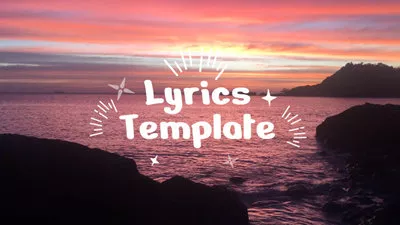
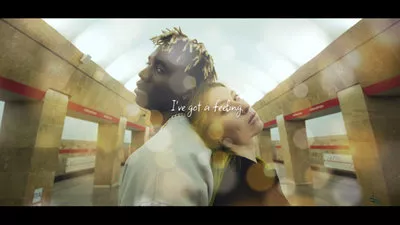
Free and Customizable Lyrics Videos for You:
Also Interested in: The Best AI Music Video Generator to Make Excellent MV Online>>
FlexClip - The Only Karaoke Video Maker You Need
Creating a karaoke video used to be a complex task requiring time-consuming search of an instrumental version of your song, downloading impressive background resources and manually typing out the lyrics word by word. But now, AI-powered karaoke video makers have made it easy for you to make an engaging karaoke videos.
With tons of karaoke video makers on the market, here we'll introduce you to FlexClip for smooth video editing and comprehensive features in one platform.
The Only Karaoke Video Maker You Need - FlexClip
Here are many reasons why we recommend FlexClip to you for creating your first karaoke video and adding animated lyrics to help audience sing along.


How to Make a Karaoke Video Using FlexClip
Now that you’re familiar with FlexClip, it’s time to use it for creating Karaoke video. Before getting started, make sure you have the instrumental version of your song.
If you don't have one, directly use FlexClip's vocal remover to accurately separate vocal and instrumental parts from the soundtrack so that you can use for creating a Karaoke video.
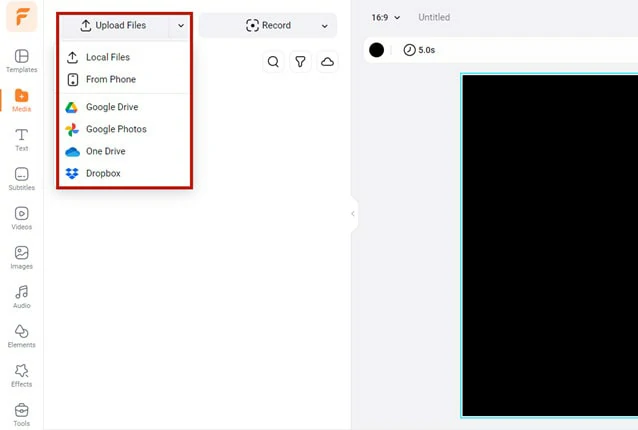
Upload the Soundtrack to FlexClip
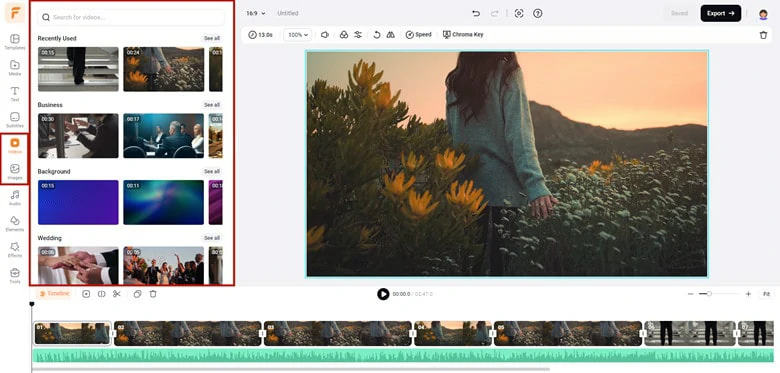
Select the Background for Your Karaoke Video
To make your Karaoke video more engaging, apply a retro filter or old-film effect to give it a realistic look.
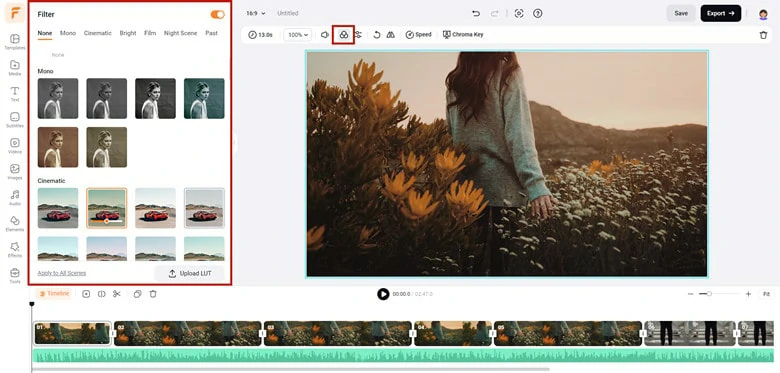
Add Filter or Overlay to the Visuals
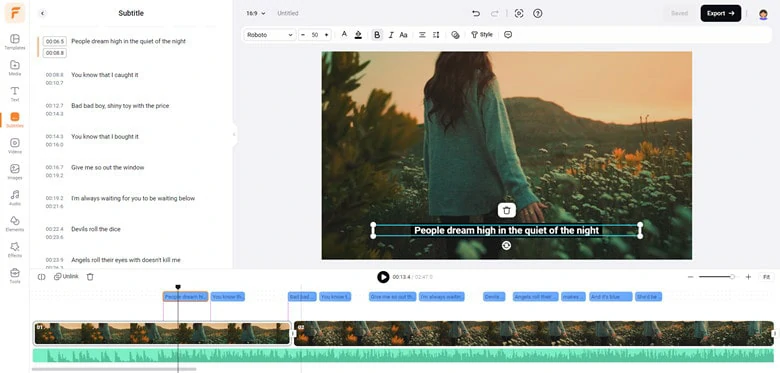
Add Lyrics to Your Karaoke Video
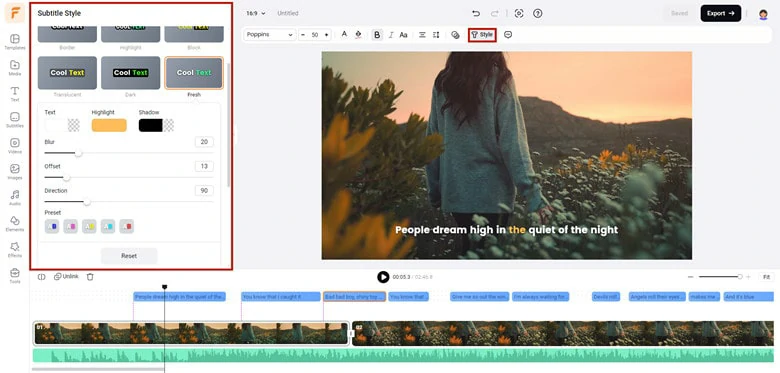
Animate the Lyrics with Cool Effects
FAQs About Creating a Karaoke Video
For those looking to create Karaoke tracks by removing vocals, Vocal Remover from FlexClip is an excellent option. Once you upload the song, the AI-powered program automatically separates the instrumentals from the vocals, allowing you to download each separately. Then, you can then use the background music to create your Karaoke videos.
Creating a Karaoke video using PowerPoint is a straightforward process and here is a step-by-step guide to help you get started.
Step 1: Obtain the instrumental version of the desired song and then open PowerPoint to create a new presentation.
Step 2: Insert the background music to your slide. To do this, go to Insert > Audio > Audio on My PC to import the instrumental music file.
Step 3: Add a new slide for each line or couplet of lyrics. After that, sync lyrics with music by adding animations.
Step 4: Play the presentation to check the sync and adjust the timing if needed.
Step 5: Save your PowerPoint and export as a video.
The quickest way to create a lyric video is finding a customizable lyric template and adding your personal touching with a lyric video maker. Fortunately, a platform called FlexClip can meet both of these requirements simultaneously. Plus, it’s quite easy to use and versatile for everyone.




FlexClip AI Video Maker
Reach professional-quality videos faster with easy editing tools, templates, and smart AI.
Start Now for Free
Hot & Trending
-
Best Ways to Find Music in YouTube Videos
-
Instagram Story Video Quality Bad After Upload? Fix It!
-
How to Repost Video on TikTok & How to Remove TikTok Repost
-

Improve Video Quality Online: 3 AI Video Quality Enhancers You Can't Miss
-
4K Convert to HD 1080p without Watermark: Best 4k Video Converters
-

Best 8 Free Video Editors - No Download Required
-
Top 13 Birthday Video Makers with Music and Effects Free
-
How to Search Filters on TikTok & Use a Filter You See - TikTok Filter Guide