


How can I blur the background of a photo?
How do I make a picture blurry in the background?
Have you ever found yourself in this situation: you’ve captured the perfect shot, but the messy background distracts from the subject, or the photo feels out of focus when you want to emphasize the subject? If so, learning how to blur the background is a must-have technique.
When it comes to selecting a tool to pixelate or blur the background, online solutions are often the best choice since they don’t require any downloads. In this article, we’ve rounded up three of the best online tools to help you blur the background of an image effortlessly. Let’s get started!
Table of Contents
FlexClip: Blur Image Background with AI
FlexClip makes it easy for anyone to blur an image background. Powered by AI, it features an intelligent photo editor that lets you create a blurred background simply by typing a prompt. Unlike most tools that apply a fixed effect, FlexClip allows you to customize the blur style—such as Gaussian, Bokeh, Grainy, Radial, Square, or Rhombus—to achieve the perfect balance between subject focus and artistic depth.
What’s more, your image quality is preserved after applying the effect, even with pixelated backgrounds. No editing experience is needed—just upload your image and let the AI handle the rest.
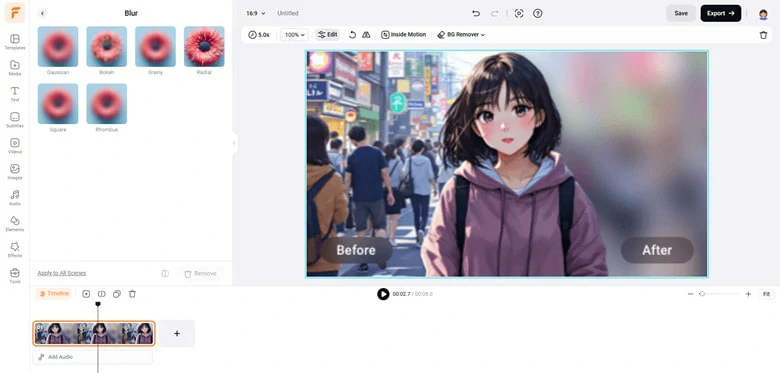
Blur Image Background Online with FlexClip
Key Features of FlexClip's Image Background Blur Tool
How to Blur the Background of an Image Online Using FlexClip
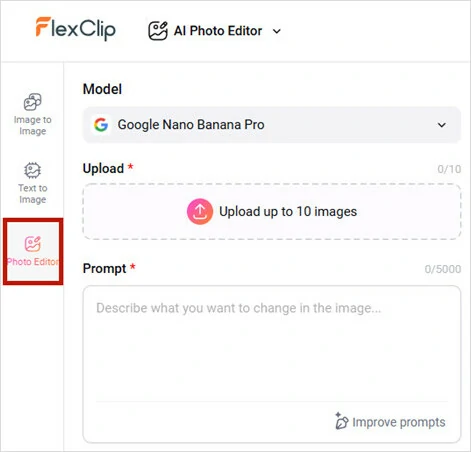
Import the Image You Want to Blur to FlexClip's AI Photo Editor
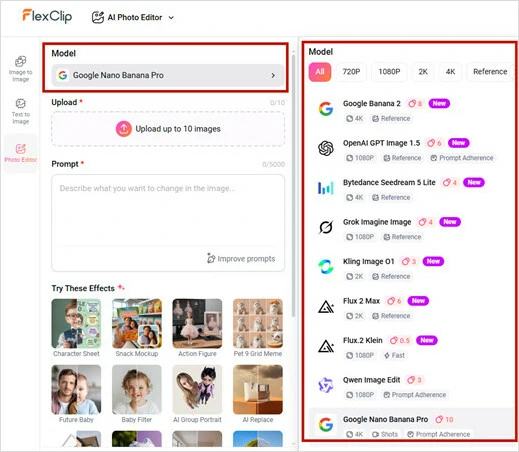
Pick a Generation Model to Blur Image Background
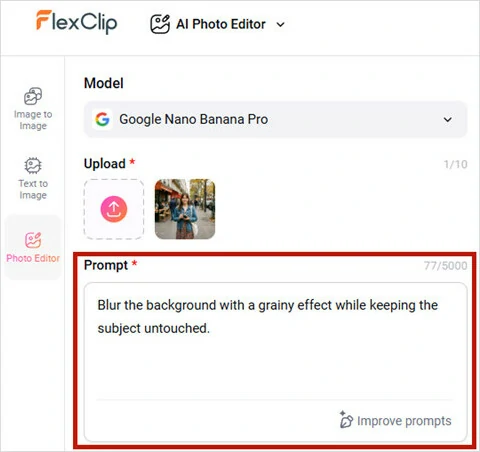
Enter a Prompt Describing the Blur Effect You Want
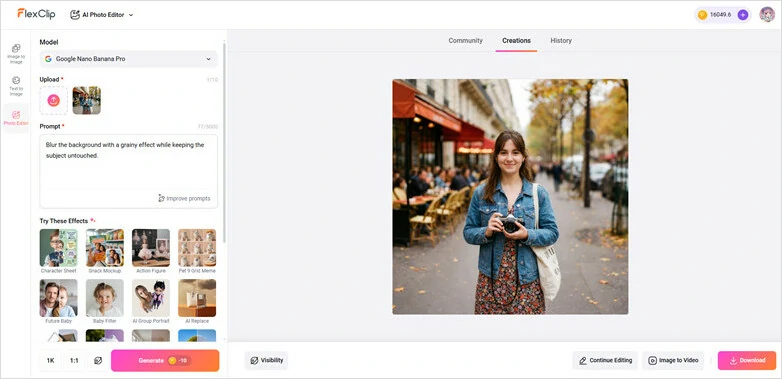
Make Setup and Blur Your Image Background in FlexClip
Pro Tips: Although FlexClip strikes a great balance between background blur and visual aesthetics, you might prefer a more striking way to highlight your subject. In that case, try FlexClip’s AI Image Background Remover to instantly and cleanly remove the background, then replace it with a fresh, stylish scene to give your image a whole new look. It also supports batch processing of up to 10 images, allowing you to complete multiple background swaps in one go—saving time while offering maximum flexibility.
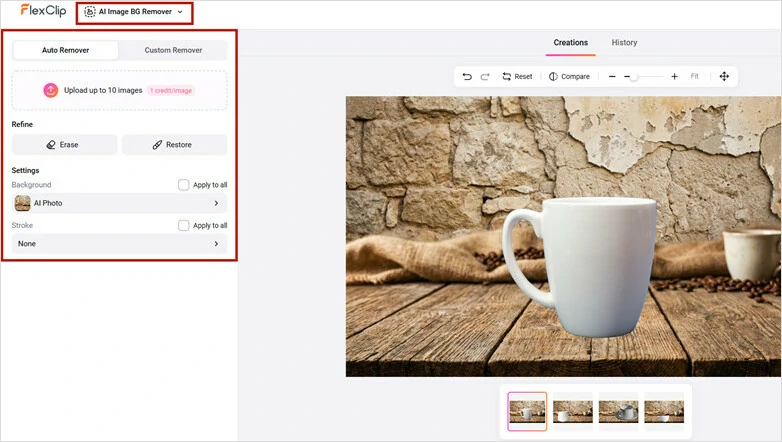
Remove Background in Batch and Replace a New One
Pixa: Blur Background in Photo Online
Pixa, formerly known as Pixelcut, provides an AI-powered way to blur image backgrounds. It works by separating the subject from the background and creating two distinct layers to achieve a smooth blur effect. Once you upload an image, the AI automatically detects the subject and applies a default blur to the background. You can then adjust the blur strength to fine-tune the effect or manually reposition and resize the subject with simple drag-and-drop controls to shift the focus as needed.
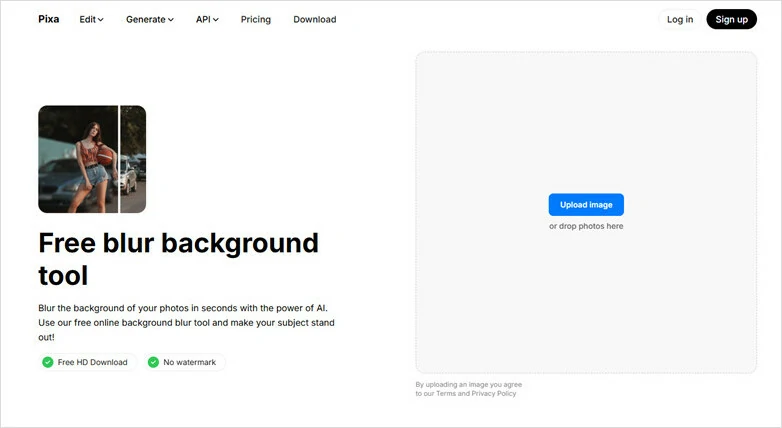
Pixa - AI Image Background Blurry Tool
Summary of Pixelcut’s Features
How to Blur the Background of an Image Online Using Pixa
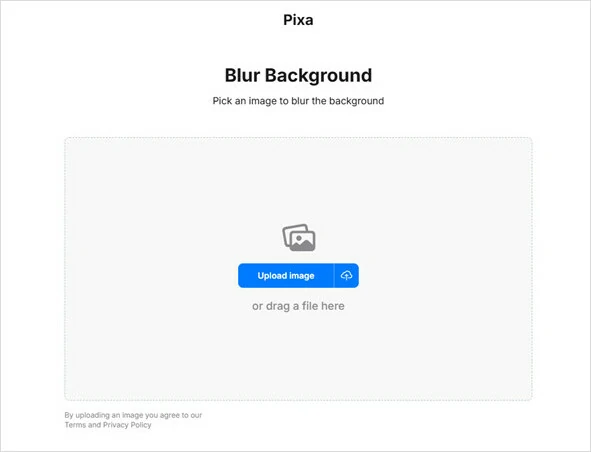
Open Pixa and Upload a Photo to Blur Background
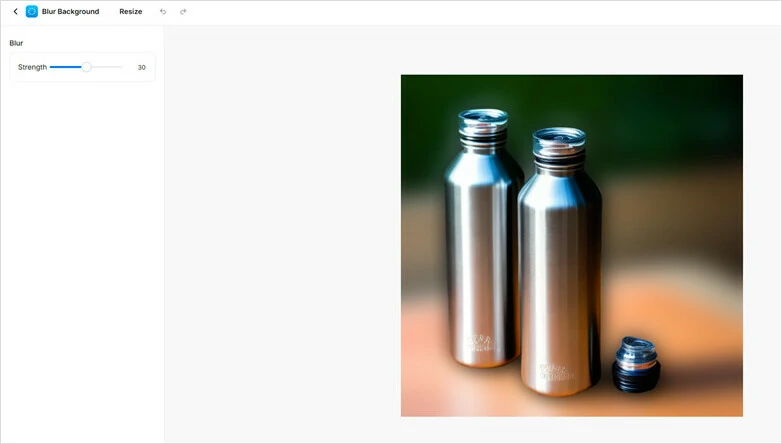
Blur the Background and Adjust the Amount of Blurry Effect
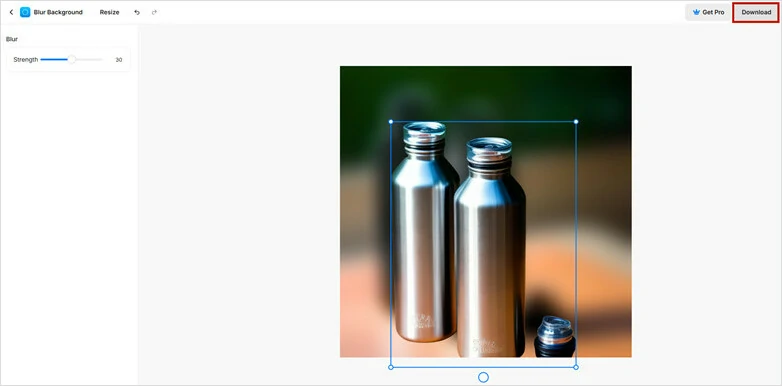
Adjust the Subject Position and Download the Blurred Image
RGBKit: Blur Background of Image Online
RGBKit includes a wide range of tools to make image edits easier. Whether you want to blur a social media post, product image, portrait, marketing campaign or other photography, RGBKit's blur background tool can obscure the background to make a clean look. You don't need to pixelate manually as AI takes over the processing task while giving you control to adjust the blur intensity with a slider. Within seconds, you can download your picture with the perfect balance of focus and blur.

RGBKit - Blur Background of Image Online
Summary of RGBKit’s Features
How to Blur the Background of an Image Online
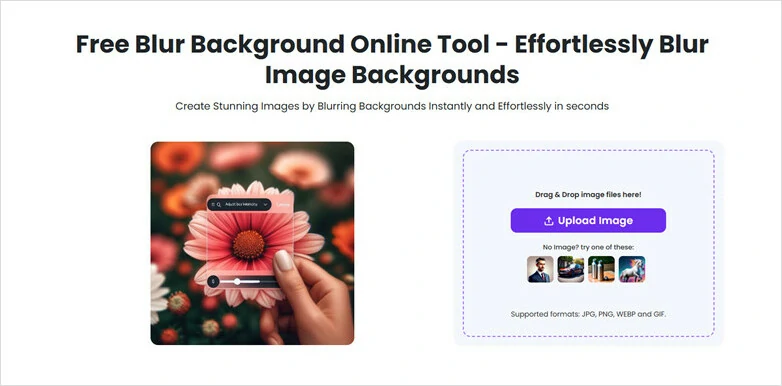
Upload the Image You Want to Blur Background to RGBKit
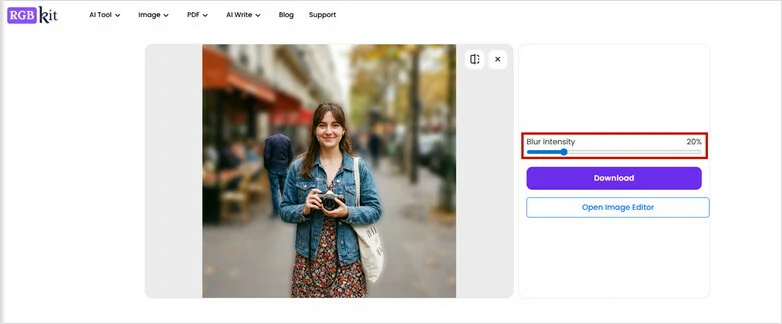
Preview the Result and Adjust the Intensity Degree to Control the Blurred Effect
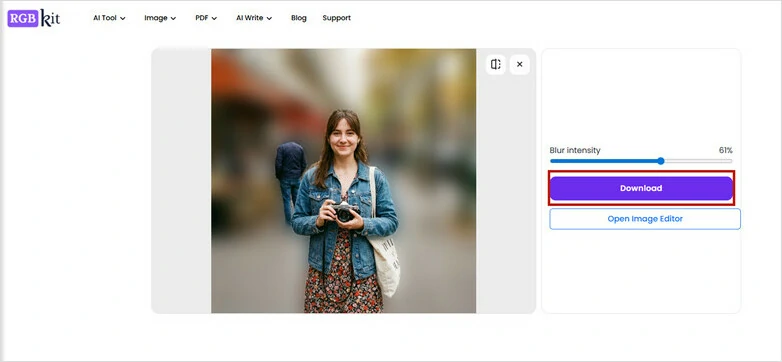
Download Your Blurry Background Image
FAQs About Blurring Image Background Online
1.How to change the background of image?
Changing the background of an image is effortless with FlexClip’s AI photo editor. Powered by AI technology, it removes backgrounds while ensuring smooth edges and offers hundreds of preset backgrounds to choose from. For a personal touch, you can even use the AI image generator to create a custom background from a text prompt.
2.How to make the image background transparent?
To create a transparent background for an image, a background remover is essential. Most tools use AI technology to automatically remove the background, delivering high-quality images with transparent backgrounds and saving you from the hassle of time-consuming and complex manual edits.
3.How to remove image background in batch?
Have multiple images that need background removal? FlexClip’s bulk image background remover has you covered. It supports various image formats and can process up to 10 images at once, allowing you to start removing backgrounds effortlessly. Plus, you can replace backgrounds with a variety of options or use the AI image generator to customize them to your liking.




FlexClip AI Video Maker
Reach professional-quality videos faster with easy editing tools, templates, and smart AI.
Start Now for Free
Hot & Trending
-

Best Ways to Find Music in YouTube Videos
-

Instagram Story Video Quality Bad After Upload? Fix It!
-

How to Repost Video on TikTok & How to Remove TikTok Repost
-

Improve Video Quality Online: 3 AI Video Quality Enhancers You Can't Miss
-

4K Convert to HD 1080p without Watermark: Best 4k Video Converters
-

Best 8 Free Video Editors - No Download Required
-

Top 13 Birthday Video Makers with Music and Effects Free
-

How to Search Filters on TikTok & Use a Filter You See - TikTok Filter Guide



